
Taking Stile off the screen and onto the page
Printing from Stile now works better than ever before, so you can run more of your lessons offline.

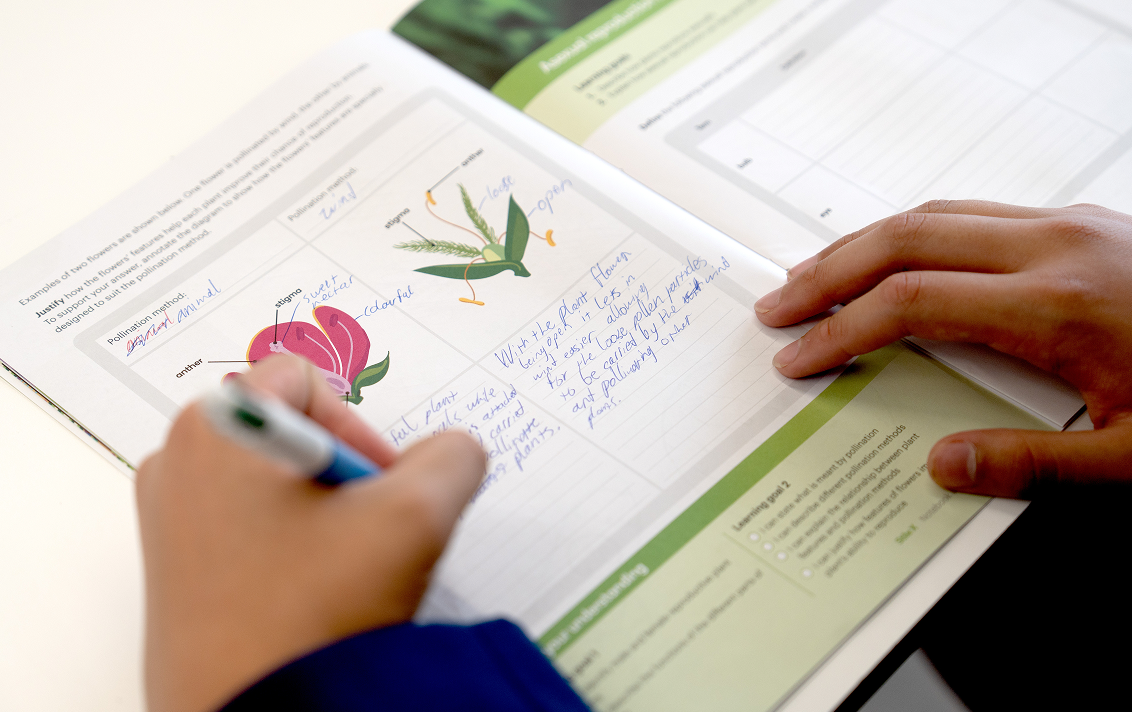
Screen time is a hot topic in education circles right now, and you've told us you want more of your lessons happening on paper. Over the last few months, we've improved Stile's print functions to help you balance on- and off-screen learning.
Why print a Stile lesson?
Stile helps teachers choose and use the right approach for the intended learning, whether it be practical, paper-based or digital, while keeping students' thinking and teachers' judgement at the centre. In practice, this means we'll recommend how a lesson might run, while also giving you options to adjust it for your unique context. In your classroom, you're the expert, after all.
Printed handouts mean that teaching from Stile doesn't require students to be on devices. If you're aiming to reduce screen time or work within specific guidelines, this gives you more flexibility to use tools you know and love.
Project Stile at the front of the room using Teach Mode, as you usually would. Instead of typing their responses, students can handwrite on printed handouts (or even into exercise books) to record their answers. You keep the explicit teaching tools, and students keep the high-quality questions while laptops stay in bags.
Choosing the right handout style
When viewing a lesson in Prepare Mode, you'll find the Print button at the top of the page, above the header image. Click Print to open the drop-down menu with five options.
To help you find your way around, each option has a colour-coded tag. Green "teachers" handouts are for you and blue "students" handouts are for them.
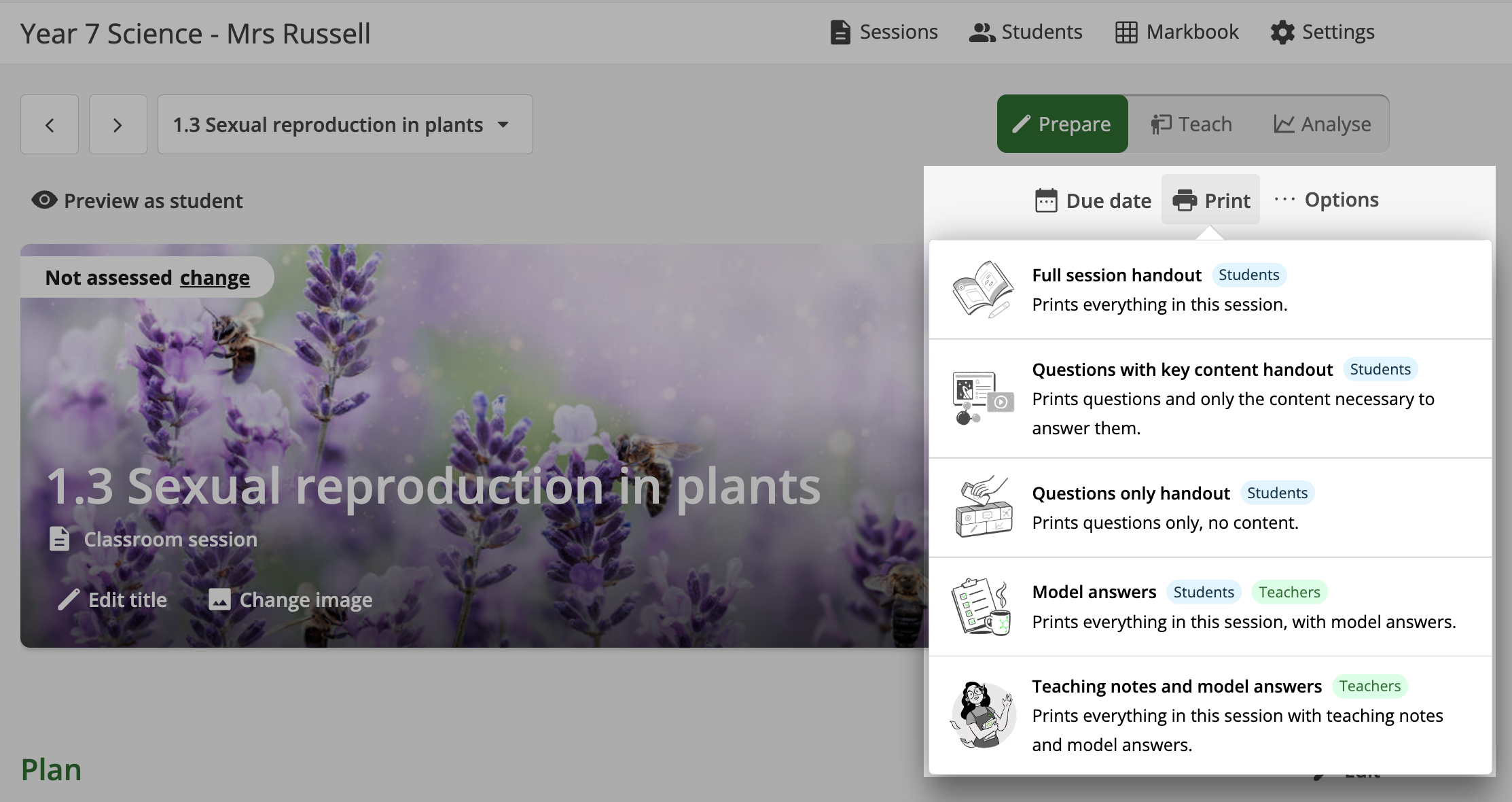
What's on each handout and how to use it
- Full session handout
Print everything that's visible to students on the page. This includes images, questions and enough space to write a response to each question. Use this handout if you want students to follow along as you project the lesson at the front of the room and refer to information from the lesson while they answer questions. - Questions with key content handout
Questions from the lesson are printed with enough space for students to write answers. The relevant information students need to answer each question is also included, such as diagrams, graphs or a passage of text. You can change what's classified as key content by clicking the "Linked Stimuli" tab when editing a question in Prepare Mode. Use this handout when students need information to help them answer a question easily available on paper. - Questions only handout
Print only the questions and lined space to answer them. Use this handout if you'll be projecting the relevant information students need to answer a question at the front of the room while they answer it. - Model answers
Print the full session handout, plus the model answers. Use this handout if you like to have a physical copy of the answers on hand to refer to, or to provide to students for review and self-marking. - Teaching notes and model answers
Print the full session handout with model answers and teaching notes. Use this handout if you want everything you can see in Prepare Mode to be visible on the page.
Run pracs on paper
Practical activities are best completed away from a computer, so students can focus on what's in front of them and liquid stays away from keyboards (because some of us have learned that lesson the hard way...)
Stile's pracs now work offline. We reviewed each practical activity using a simple test: "Would this make sense if it were printed?" If not, we changed it. That means words like "upload" have been removed and videos are replaced by images that give the information required.
Printing a prac using "Questions with key content" gives students everything they need on the page, including
- Introductory information to set up the task
- The materials and method, illustrated with images
- Headings for the Aim, Results and Discussion sections
- Safety messages, included right where students need to see them
A couple of our practical activities remain on devices because they work better that way. For example, tasks where students investigate using a digital simulation or collate their data using collaborative tools.
Print a whole unit as a booklet
Print a full Stile unit at once using the "Print all" button in any unit folder. This option means you'll hand students a booklet at the beginning of the unit with everything they need in front of them while you teach with the lesson projected up front.
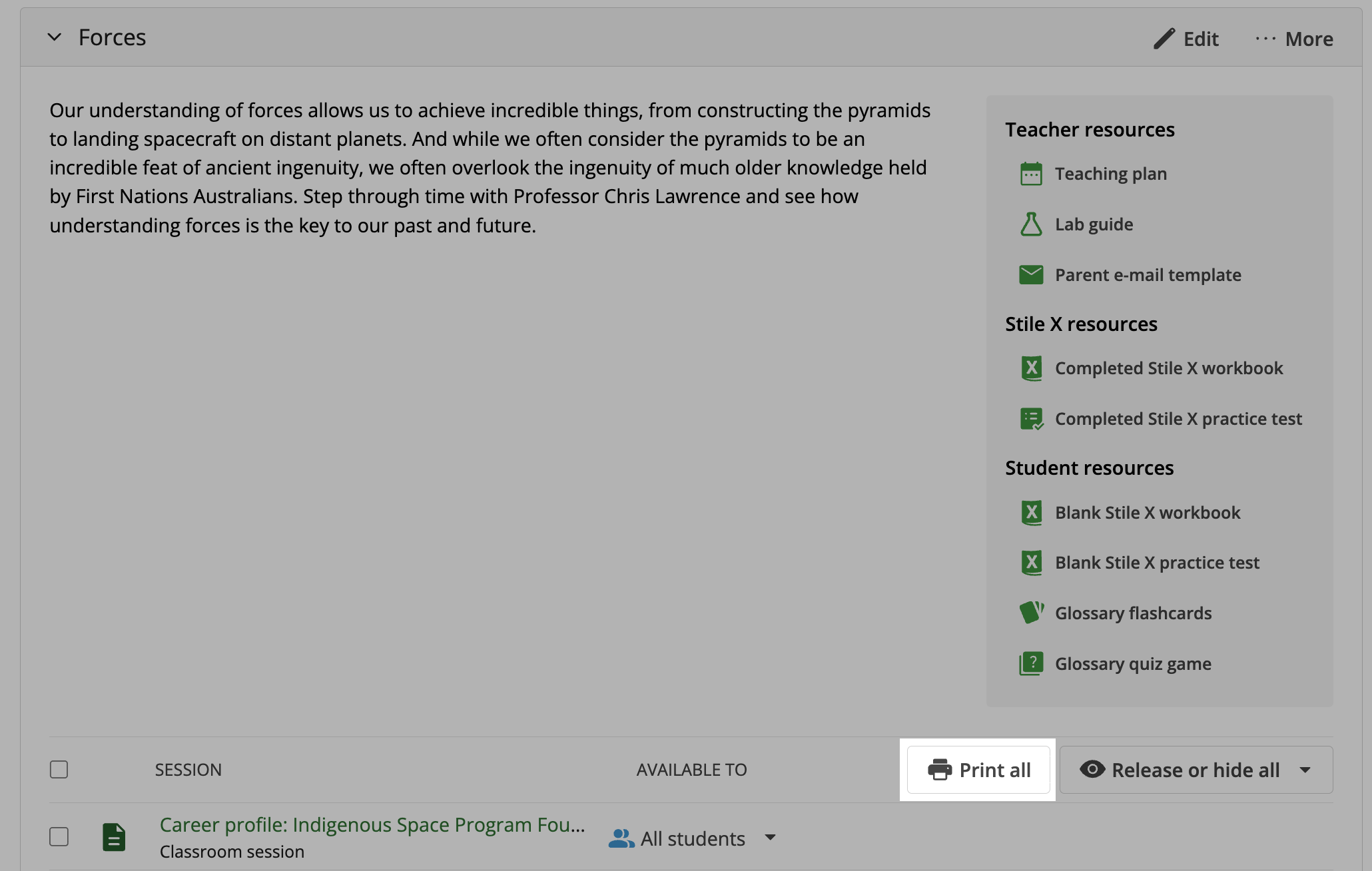
When printing, choose the handout style you want. Stile compiles every session into a PDF for easy printing. Choose to include a cover page for students to write their name on, and a table of contents to help them find the right page quickly. There's even a binder option that leaves a margin for hole-punching.
If you're looking for more guidance on balancing on- and off-screen learning with Stile, check out our Stile Academy module below.